Since XML is a descriptive format, there is no restrictions on the size of any of
the elements, thus there is no GUI needed for the exporting of XML. Simply press
the File->Export As->.XML. A file requester will pop up asking you where to save
the file. Select somewhere on your Hard drive. Then Vanilla will create the XML
file. Exporting the Sample List will result in the following XML file: (this is
just a little snippet of the resultant file):
With the Text format, you are will be more concerned about the lengths of the Name
and Description fields. As you know, Descriptions can potentially be huge, and over
many lines. This can cause some issues if you want to export a list as a Text File.
That is why Vanilla gives you the option to tailor your output to what you want.
Once you press the File->Export As->.TXT, Vanilla brings up the following window:
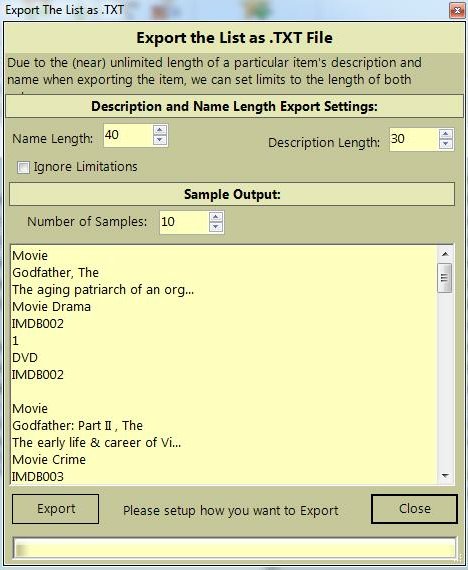
You can set up the length of the outputted Name and Description Fields to what you
want. Simply change the relevant values under the "Description and Name Length Export
Settings". This works exactly the same way as it does in the Options Window. There
is a checkbox underneath the values called "Ignore Limitations". This will not trim
any of the Name or Description fields, but instead dump the entire length of the
Name and Descriptions Fields to the Text file no matter how large they are.
Below the Limitations section, there is a section called "Sample Output". This will
show you X amount (by default 10 items from your list) of your records as how they
would appear in the Text file. Changing any of the Limitation fields will show you
in real-time, what the output will look like. You can increase the Sample Output
number of records by increasing the "Number of Samples:" value. Once you are satisfied
with the way the output from the list will be, then press the Export Button. A file
requestor will appear and prompt you for a filename, so enter one, and then Vanilla
will export your list to the text File.
Here is a Sample of what the Sample List will look like when you export it as a
Text File (using the default settings). Click the Blue headers to see the relevant
export.
With the CSV format, you are more concerned about the length of the Name and Descriptions.
As you know, Descriptions can be huge, and be over many lines. This can cause some
issues if you want to export a list as a CSV File. That is why Vanilla gives you
the option to tailor your output to what you want. Once you press the File->Export
As->.CSV, Vanilla brings up the following window:

You can set up the length of the outputted Name and Description Fields to what you
want. Simply chance the relevant values under the "Description and Name Length Export
Settings". This works exactly the same way as it does in the Options Window. There
is a checkbox underneath the values called "Ignore Limitations". This will not trim
any of the Name or Description fields, but instead dump the entire length of the
Name and Descriptions Fields to the file.
Below the Limitations section, there is a section called "Sample Output". This will
show you X amount (by default 10 items from your list) of your records as how they
will appear in the CSV file. Changing any of the Limitation fields will show you
in real-time, what the output will look like. You can increase the Sample Output
number of record by increasing the "Number of Samples:" value. Once you are satisfied
with the way the output from the list will be, then press the Export Button. A file
requestor will appear and prompt you for a filename, so enter one, and then Vanilla
will export your list to the CSV File.
Here is a Sample of what the Sample List will look like when you export it as a
CSV File (using the default settings)