 Home › Programs › Ranger › Ranger Walkthrough - Page 3
Ranger Walkthrough (Page 3)
Back to the Main Screen, Press the "Preferences" button, and it reveals:
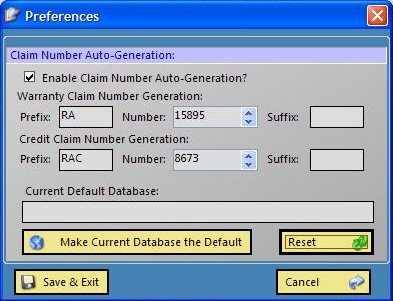
Here, you can get Ranger to auto generate your RA numbers when you create a new
claim. Above, it will generate for the next new claims:
For a Warranty: RA15869
For a Credit: RAC8672
Obviously, everyone has a different RA numbering scheme, but if it is based around
a prefix/suffix and a number, then Ranger can auto generate it. If you entered "ZS"
"233" "myname", the next claim's number would be "ZS233myname", and then
the subsequent one would be "ZS234myname" etc...
Another feature of the Preferences, is that you can set up the database that you
are working on, to the default database. This means is that the next time Ranger
starts up, It will automatically load the database.
Ranger has some extensive searching abilities:
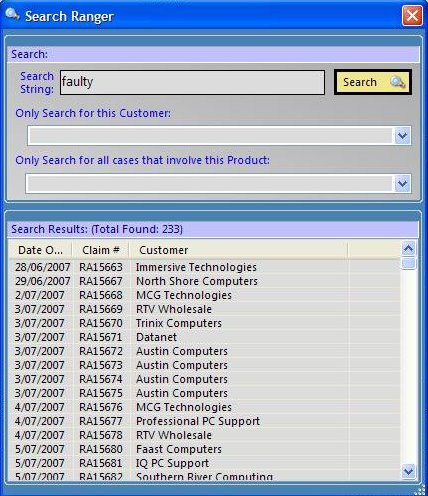
Firstly, you can search for a keyword. in this case "faulty" Ranger will list all
claims that contain that word.
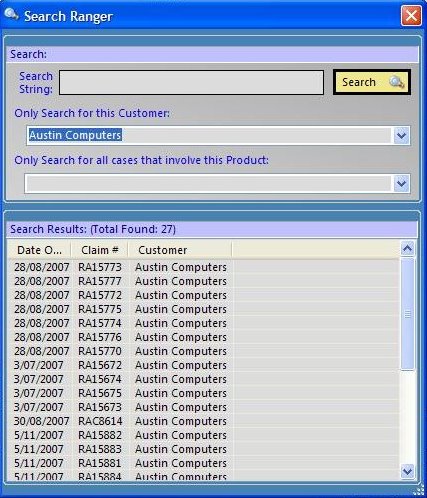
You can also search by Customer, and see what claims they have applied for. Great
to see who is claiming the most items.
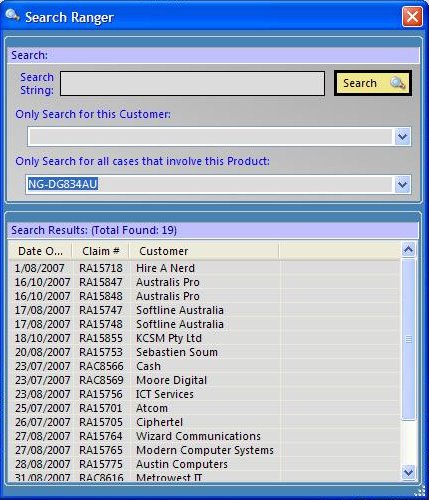
Or you can search by Product, and see who has had a claim on it. Above, you can
see that NG-DG834AU has been in claimed 18 times (Note: this does not mean only
18 units have been used, as the search does not take quantity into consideration!).
Previous
Page
|
Next Page