 Home › Programs › Vanilla › Walkthrough › 07. Changing Options
Walkthrough: Changing Options
Vanilla comes with a few Options. To go to the Options window, just press the "Options"
menu item on the Toolbar, otherwise you can select it by pressing the Tools->Options
item in the pull down menus, or just simply press CTRL-P. Once you have done this,
the Options window appears:
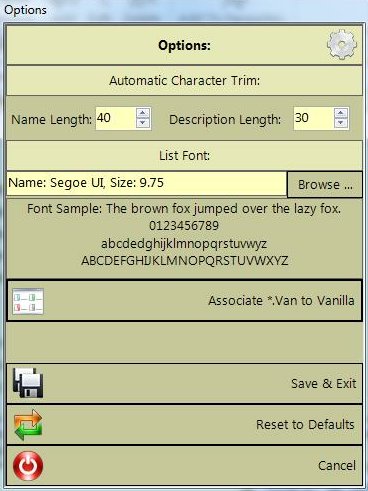
Automatic Character Trim:
This determines at which point, the Name and Description fields will be trimmed
on the Main and Search Lists. The reason for this is, that in a lot of cases, the
Names and Descriptions of items can be very large in size. Let's Play with these
values and see what happens to the Main List using the Sample List:

What Automatic Character Trim Does
List Font:
As the name suggests, this changes the font of the Main and Search Lists. If you
find that the list is too small or too big for you, just change it!. Simply press
the "Browse..." button, and it will bring up the standard Windows Font Requester.
Just select your desires font, and the list will use that font from then on (Even
if you exit Vanilla, and restart it!). Some different font examples:
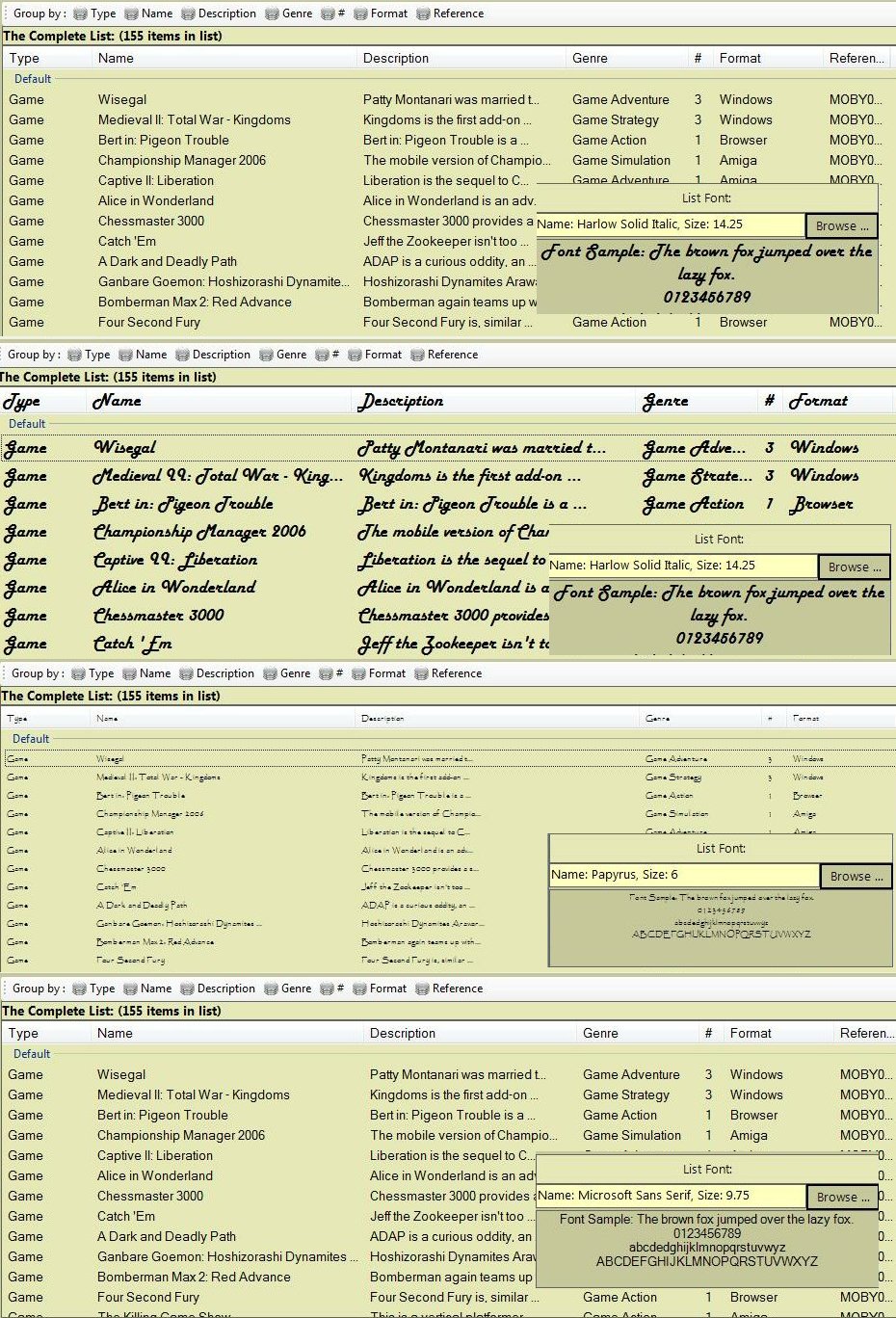
Setting the List to different Fonts
Associate *.Van to Vanilla
This Associates the *.Van file extension with Windows so that you can just load
your list by double clicking on the .VAN file in Windows Explorer. A word of warning,
as Vanilla is designed to be run from any location on your computer (even temporary
ones, like USB sticks), that you do this when you have the Vanilla.exe in a permanent
directory (i.e., somewhere like C:\Windows, or C:\Program Files.), else you may
run into issues when Windows tries to find the Vanilla.exe and can't find it. If
Windows comes up saying that it can't find Vanilla, just copy Vanilla to a permanent
directory and run through the options and press the "Associate *.Van to Vanilla"
button, and it will fix the file association.
On the bottom of the Options Window, there are three buttons:
- Save & Exit - This saves your settings and changes the main Vanilla screen if
necessary.
- Reset to Defaults - This will set Vanilla's options back to their default values.
Note: This option will also reset all of Vanilla's default window positioning data
back to default as well.
- Cancel - Doesn't save any of the changes.